
Set up once. Track what changes.
Your date of birth is required during initial onboarding/setup. It is also required when adding Super accounts: the primary account uses your saved date of birth, and other account holders need their own date of birth entered in the Super account details. These details support age-based Super and retirement results. Follow the app’s on-screen steps before entering your financial accounts.
For your own finances, the process is simple. You only need an asset to begin tracking — you do not need a mortgage or any other debt.
- 1Add assetsRecord what you own: Super, savings, property (if owned) and investments.
- 2Add liabilities, if anyAdd a mortgage or other debts only when you actually owe money.
- 3Review your first SnapshotNetWorth creates today's starting baseline automatically when the first asset is saved. Check it after setup.
- 4Update & repeatOn a later date, open Add snapshot, adjust changed balances and save Update values.
Set up each account once. Later, update its balance in the Snapshot's Update values screen — you do not need to re-add the account or update that balance separately in Assets first. Review your starting Snapshot after entering all accounts: an automatically created baseline may not include later additions.
Add your property, if owned
If you own property, record it as an asset at its full current market value. Add a mortgage separately under Liabilities only if you have one. Users without property can start with Super, savings or another asset.
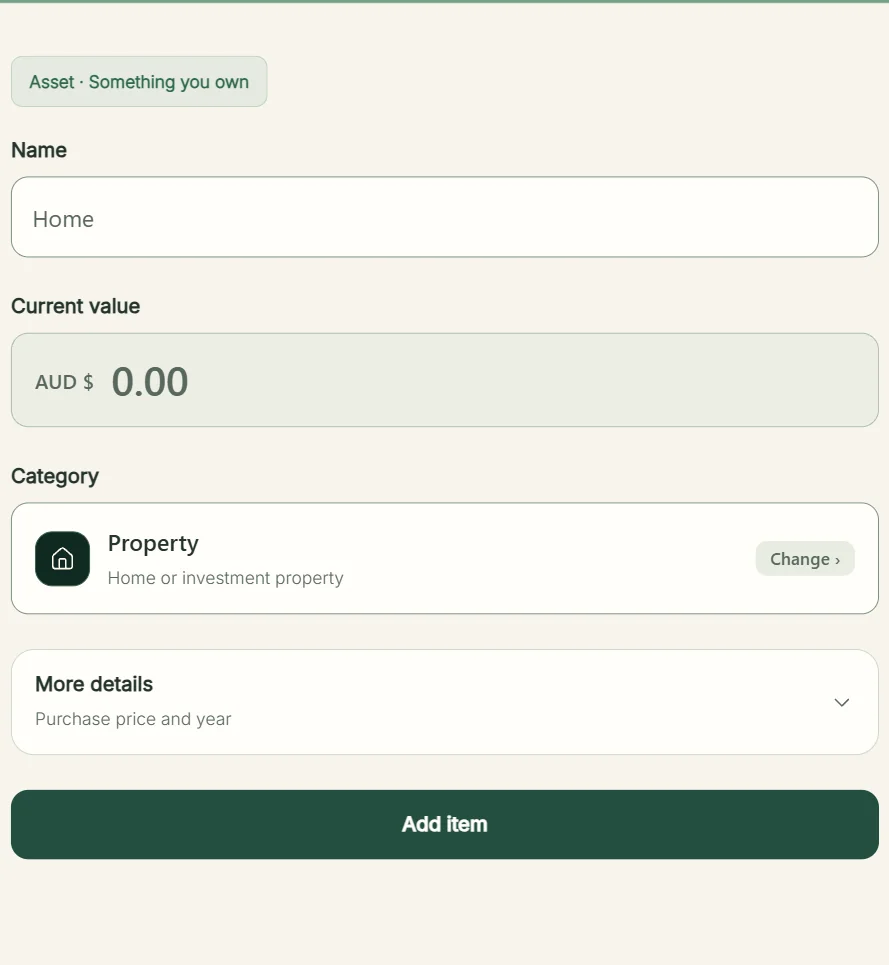
Enter a recognisable name, such as “Home”.
Enter the property’s full current estimated market value — not its equity after deducting a mortgage.
The mortgage is entered as a separate liability. If you enter only the equity as the property value and then add the mortgage, the debt effectively gets counted twice.
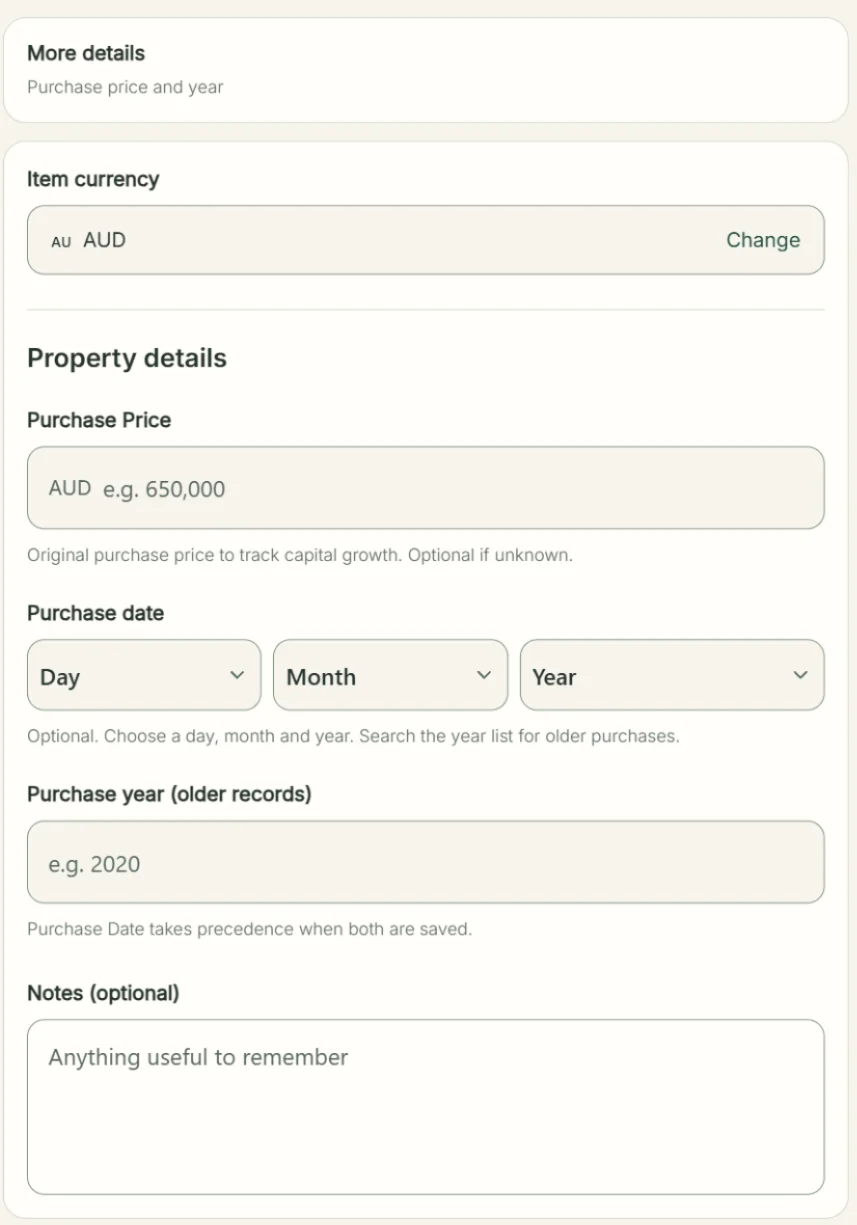
Purchase Price and Purchase date — strongly recommended
Enter the actual Purchase Price and Purchase date when you know them. Together with Current value, they enable purchase-to-current growth and annualised growth calculations. They are technically optional to save, but important for a useful property history. Purchase year (older records) is a fallback for existing older records.
These details do not replace the Current value used in today's net worth. If you have a mortgage, link the property from the Mortgage form.
Mortgage + offset (if applicable)
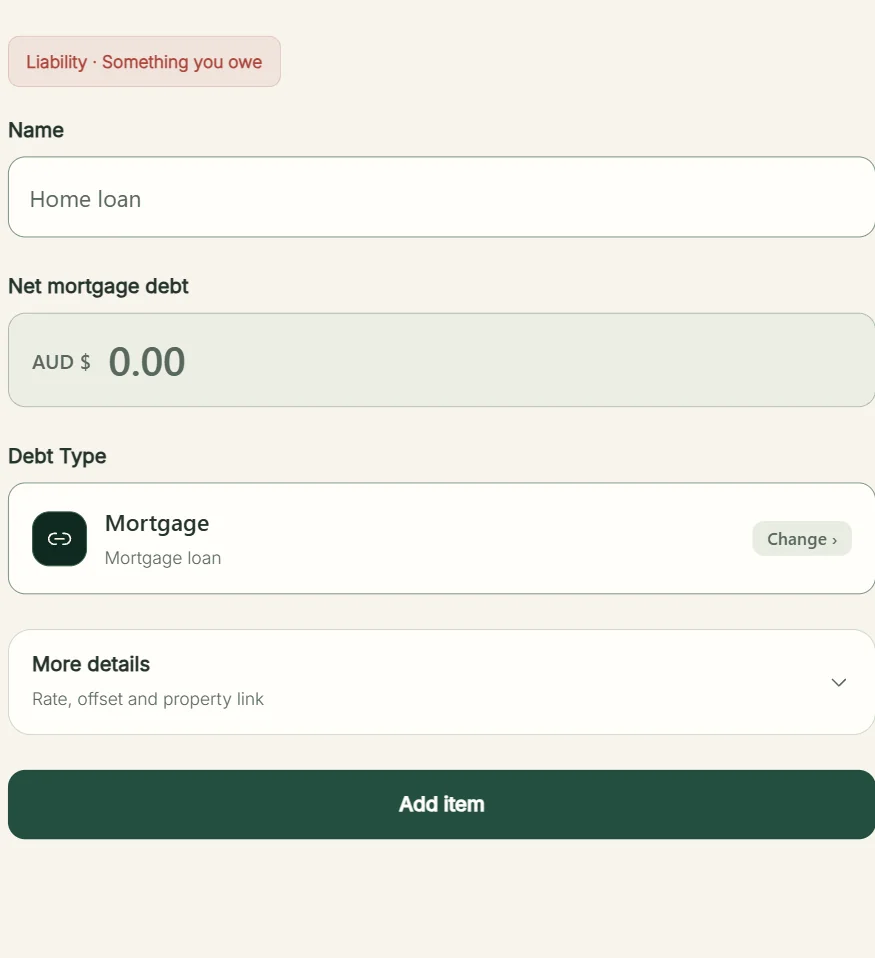
Skip this section if you do not have a mortgage. If you do, the key is entering the right amount in Net mortgage debt. NetWorth treats the offset as part of the mortgage information, not as a separate cash asset.
Illustrative amounts only. Record $350,000 under Net mortgage debt and $50,000 under Offset / redraw balance.
Fields that matter
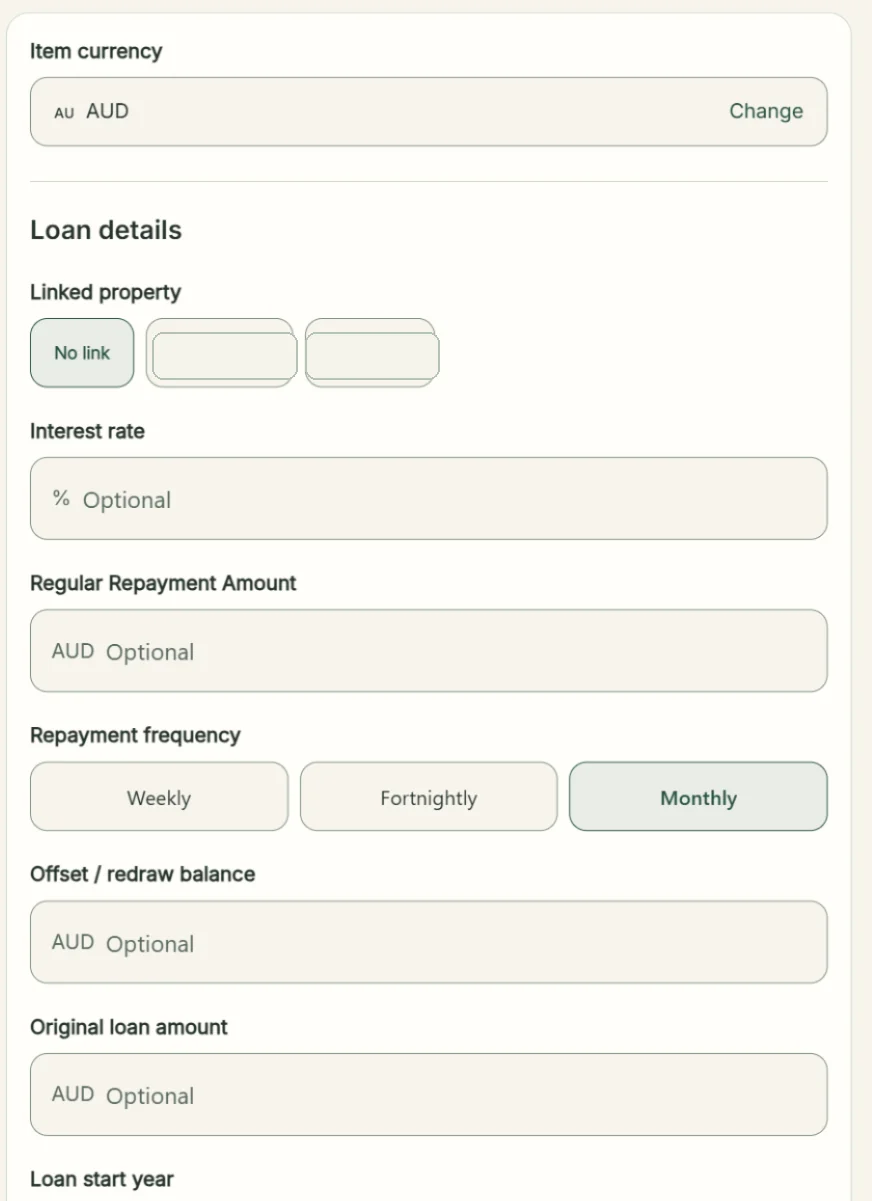
Choose the related Property (for example, Home). This links the mortgage to the property's equity breakdown.
Enter the current annual rate (for example, 6.00 means 6.00%).
Example: $2,500 each month. Enter the amount you actually pay per period, not an annual total.
Choose Weekly, Fortnightly or Monthly to match that amount. Our example uses Monthly.
In this example enter $50,000, already reflected in the $350,000 Net mortgage debt.
Original loan amount and Loan start year are optional and do not set the current net debt.
Do not subtract your offset from Net mortgage debt a second time, and do not also list that same offset balance as a separate Cash & savings asset. Check that any repayment amount matches its selected frequency.
Add your Superannuation
Give each Super account its own current balance and forward-looking assumptions, so projections can reflect that account.
Name the fund or account, then enter the balance it holds now.
For a non-primary account, supply its holder's DOB. A Primary Career Super account uses your DOB from Settings → Personal Details.
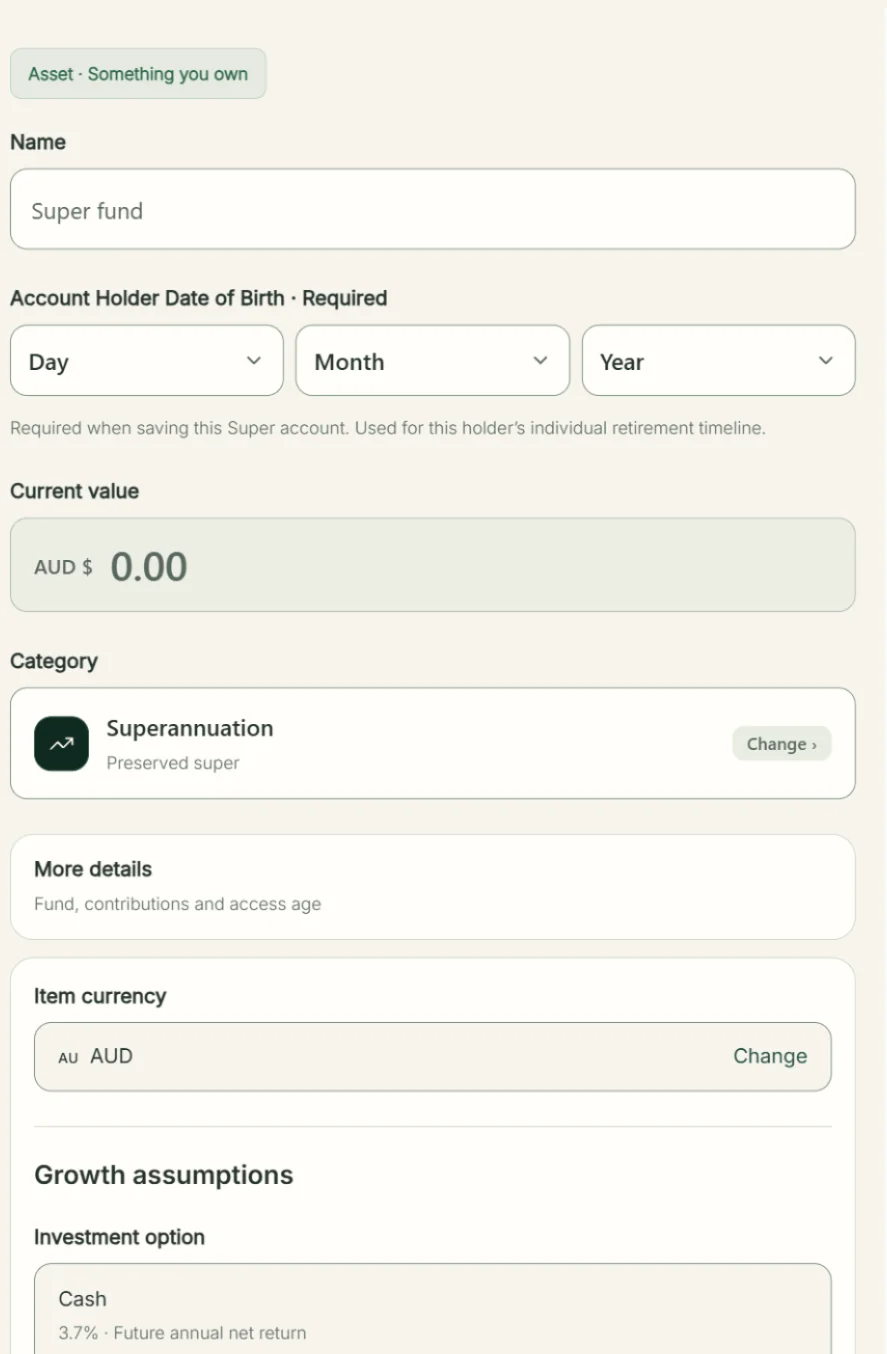
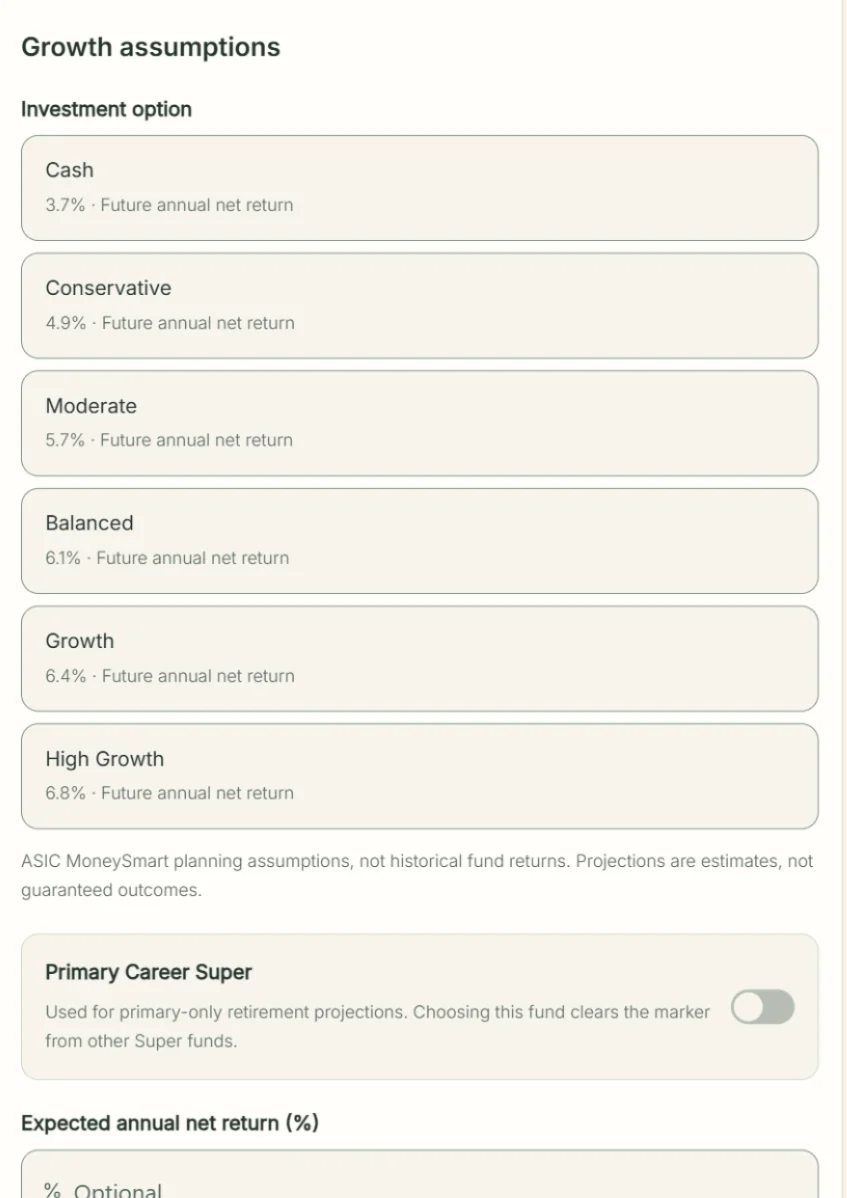
Cash, Conservative, Moderate, Balanced, Growth and High Growth fill an expected annual net return. They do not connect your Super fund or guarantee an investment result.
Set your growth assumptions
Mark the main career Super account. Its DOB comes from Settings → Personal Details. Only one account has this primary designation.
Example: selecting Balanced fills a 6.1% annual net-return assumption. You can also enter a different net return. Don't enter a gross return into a net-return field.
Enter the total expected amount deposited after contribution tax, including employer and voluntary contributions. Not your salary or an annual figure. Our fictional example uses $850 per month.
Optional (55–60). This does not establish access eligibility on its own or replace your chosen retirement target.
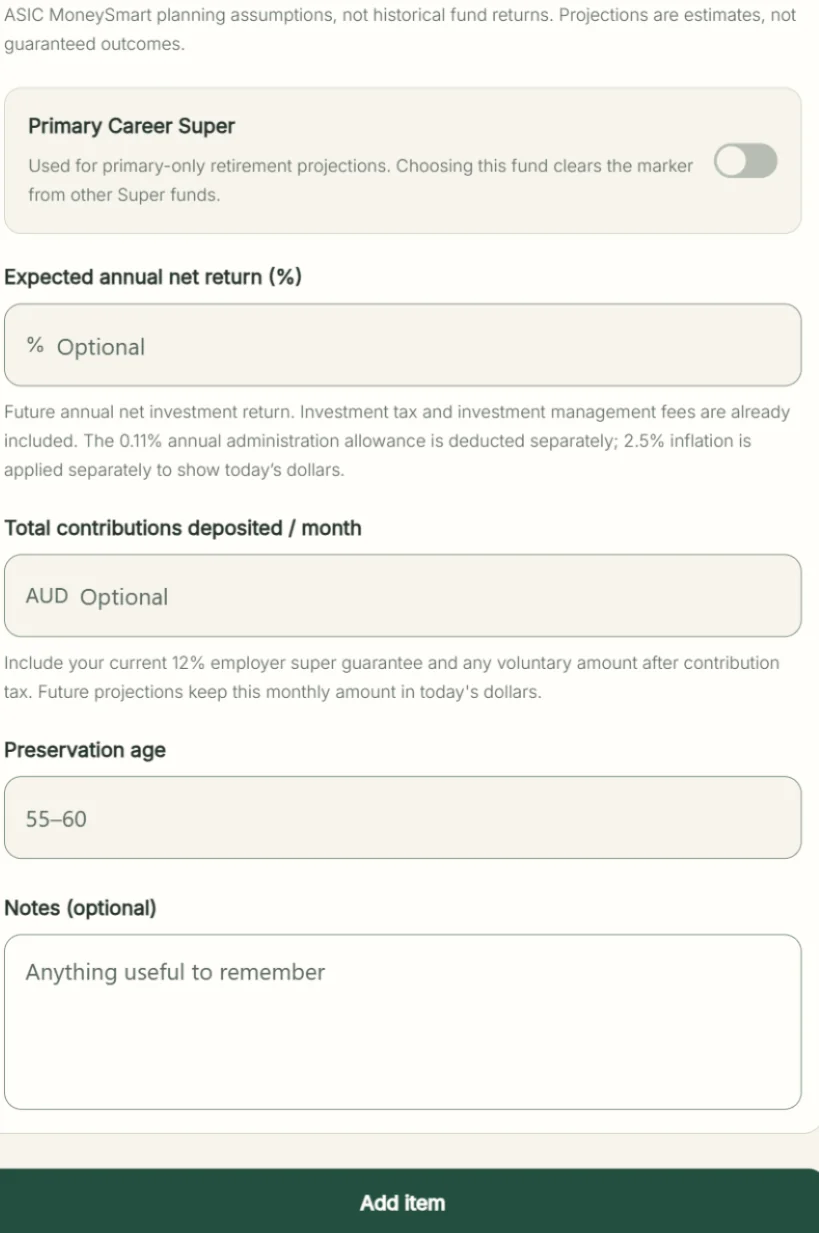
Age-based accumulation estimates need a valid date of birth and a saved future return. The retirement age in Financial Assumptions defaults to 67 and can be changed later.
Review your first Snapshot
NetWorth automatically creates your first dated baseline once you save an active asset, if you do not already have Snapshots. Review it after adding your accounts; subsequent Snapshots record how your balances change over time.
After initial setup, open Add snapshot and check the prefilled balances in Update values. Correct anything missing or outdated, then save. If today's automatic baseline already exists, saving again for the same date updates that record instead of creating a duplicate.
These fictional figures match the examples above. The screenshots below are anonymised captures of the real input screens, not populated with these example figures.
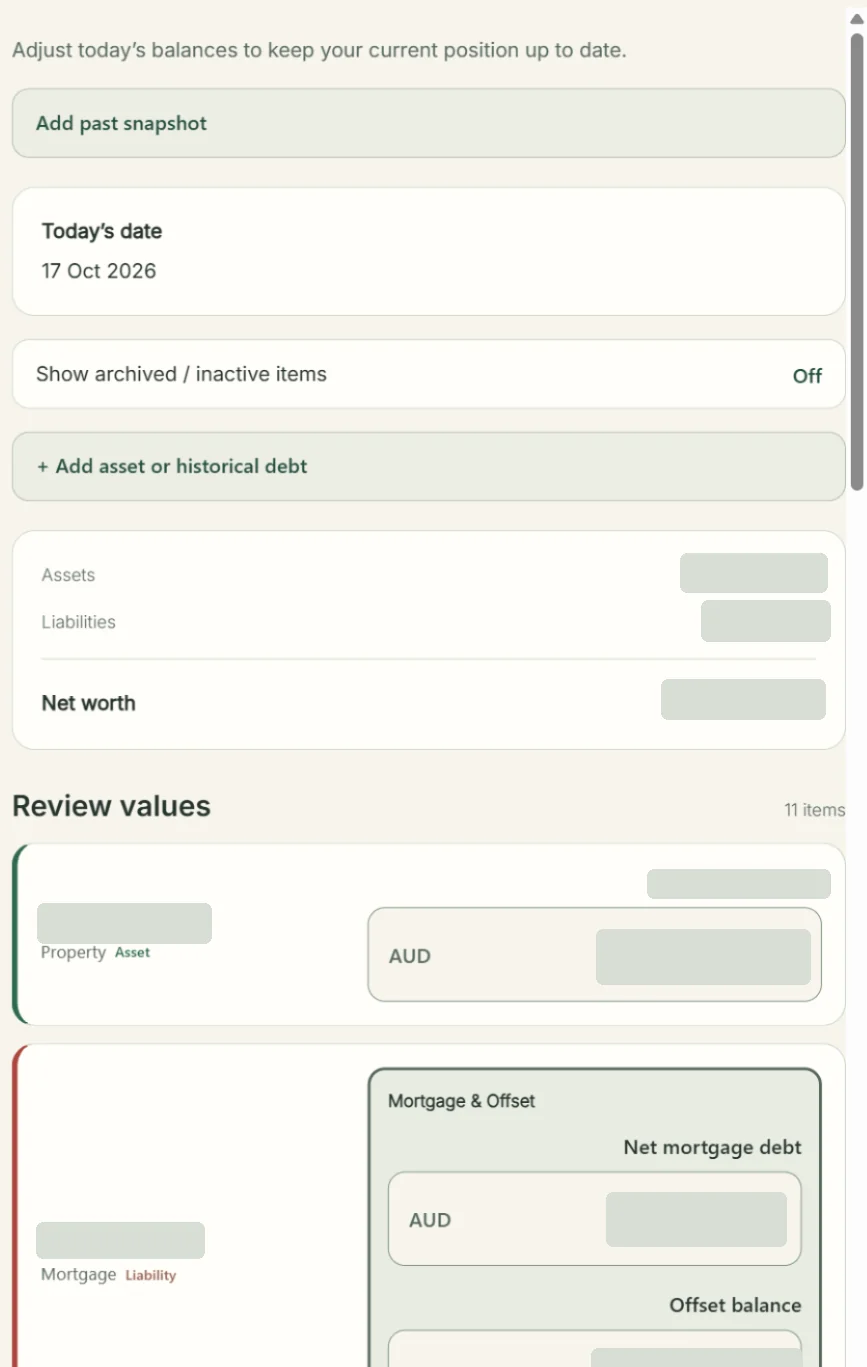
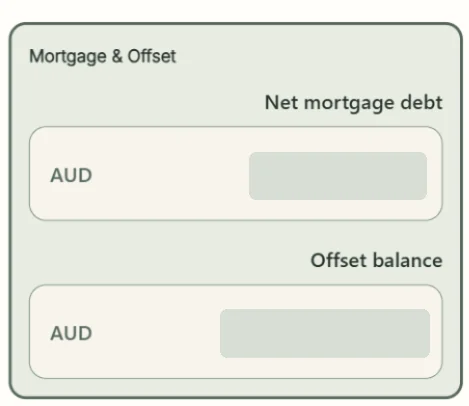

If you have a mortgage, Net mortgage debt and Offset balance are fields tied to that existing liability in the Snapshot screen. Make sure both reflect the same date and do not add the offset as Cash & savings again. If you have no debts, there are no mortgage fields to fill in.
Before you save
- Check that all your assets — and any real liabilities — are included.
- For a mortgage, check net debt and offset together.
- Check the Snapshot date and adjust balances that have changed.
- Save with Update values. This also updates current active account balances for a current-date save.
The screenshots here show the Update values flow, with personal information concealed. Existing Demo history is not the same as the new Snapshot entry screen. Monthly updates are recommended for consistency, not required by the app.
After entering your assets and any liabilities, review your starting Snapshot. Return to Update values whenever you want to capture progress.